Receipt Scanner App for Android & iOS
To scan receipts with OnlyScans, open the app, point the camera at each paper receipt, and export a searchable PDF. Everything runs offline on your Android phone or iPhone, so amounts and vendors stay private while you organize receipts for expenses and taxes.
OnlyScans documentation · Reviewed 21 September 2026
How to scan receipts in three steps
1. Capture each receipt
Open OnlyScans and point the camera at a paper receipt. Automatic edge detection finds the borders, corrects perspective, and snaps the shot — scan several receipts in a batch to combine them into one PDF.
2. Sharpen and run OCR
Apply a filter to make faded thermal-paper text legible, then run offline OCR so amounts, dates, and vendor names become searchable inside the file.
3. Export and organize
Save the result as a searchable PDF and file it into folders by month, client, or tax category. Share or back it up wherever you like — nothing is uploaded for you.
Why scan receipts with OnlyScans
Searchable amounts and vendors
Offline OCR embeds recognized text in each PDF, so you can search a stack of receipts for a vendor name or amount instead of squinting at paper.
Organize receipts in folders
Group receipts into folders for expenses, clients, or tax years and keep everything tidy in one app.
Financial data stays private
There is no cloud upload and no account. Your receipts and the amounts on them never leave the device unless you choose to share or export a file yourself.
Keep receipts readable and easy to find
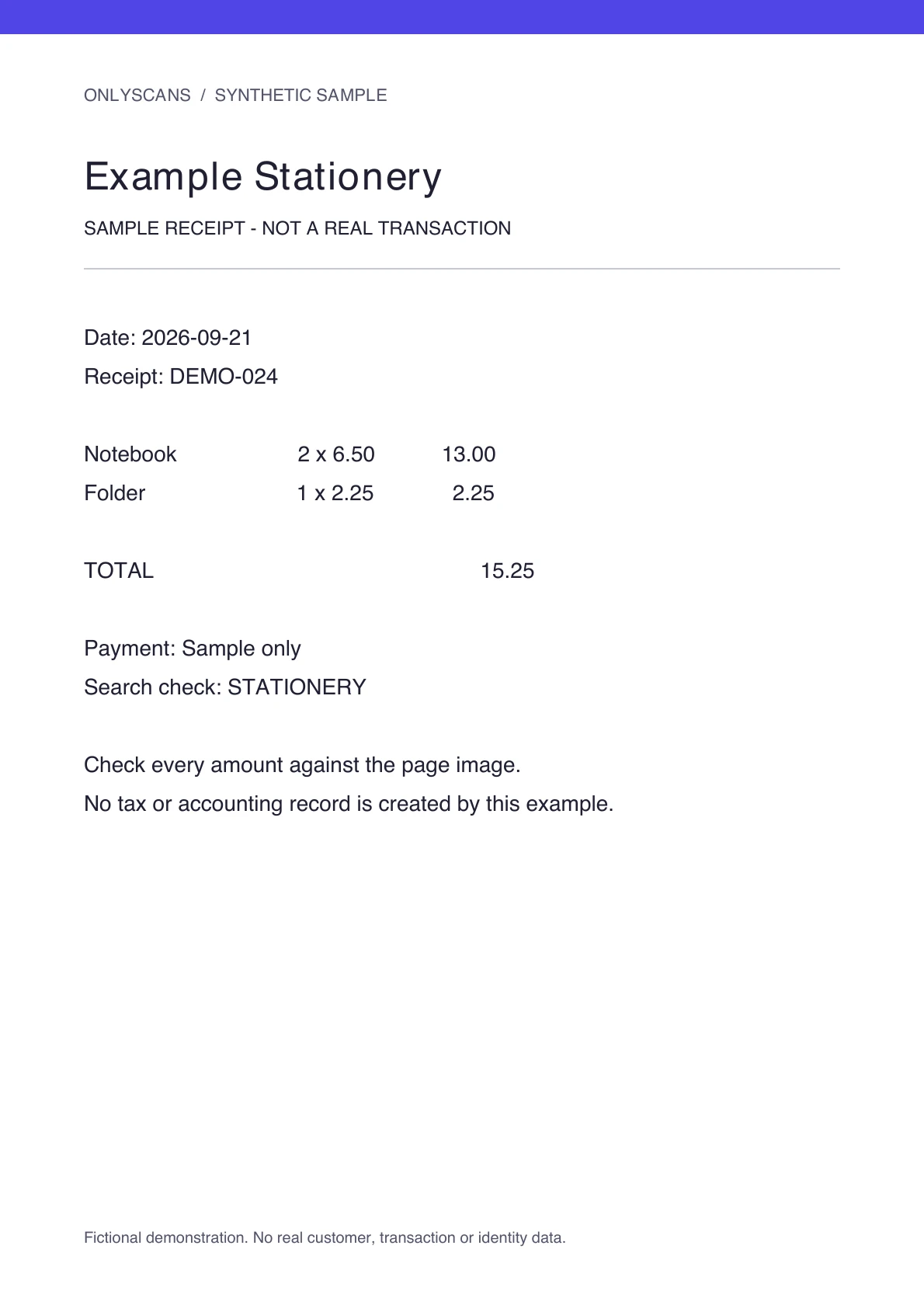
Flatten a curled receipt and capture it before thermal print fades. Try original color and a contrast filter, then compare the date and total at full size. Filters cannot recover ink that is no longer visible. For a long receipt, make sure no lines are omitted or duplicated between captured sections.
Use a consistent name such as 2026-09-21_example-stationery_receipt.pdf and a month or project folder. With Pro, export a searchable PDF and test the vendor name and amount in a PDF reader. OnlyScans creates document files; searchable text is not automatic expense categorization, accounting integration or verified tax data. Check every amount against the image.
Receipt scanning FAQ
Can I scan multiple receipts into one PDF?
Yes. Scan receipts in a batch and OnlyScans merges them into a single multi-page PDF, or you can reorder and combine pages afterward.
Does OnlyScans read the amounts on my receipts?
Offline OCR recognizes the text on each receipt — including amounts, dates, and vendor names — and embeds it so the exported PDF is searchable. The recognition happens on your device.
Are my scanned receipts uploaded anywhere?
No. OnlyScans has no cloud backend. Scanned receipts and recognized text stay in local storage on your phone until you share or export them yourself.
Related OnlyScans workflows
- Scan an ID card to PDF →
- Scan and sign documents →
- Scan documents to PDF on Android & iOS →
- Scan to Word on Android and iPhone →
- Use the offline document scanner — no cloud upload →
- See every OnlyScans feature →