Scan and Sign Documents on Android & iOS
To sign scanned documents with OnlyScans, scan the page, add your signature directly on your device, and export a signed PDF. The whole process runs offline, so no cloud e-sign service ever sees your document.
OnlyScans documentation · Reviewed 21 September 2026
How to scan and sign a document in three steps
1. Scan the document
Open OnlyScans and capture the page you need to sign. Automatic edge detection and filters give you a clean, legible scan.
2. Add your signature
Place your signature on the document right on the device, and add any annotations the page needs — all on-device, with no third-party e-sign service involved.
3. Export the signed PDF
Save the signed page as a PDF, add a password if you like, and share it to any app or storage. Nothing is uploaded for you.
Why scan and sign with OnlyScans
Sign on-device
Add your signature directly to a scan on your phone, so the signed document never leaves the device during the process.
No cloud e-sign account
There is no separate e-signature service to sign up for. Scan, sign, and export a finished PDF entirely inside OnlyScans.
Signed PDFs stay yours
Password-protect the exported PDF, lock the app, and decide exactly where the signed file goes — nothing is uploaded unless you share it.
Place the signature and verify the exported page
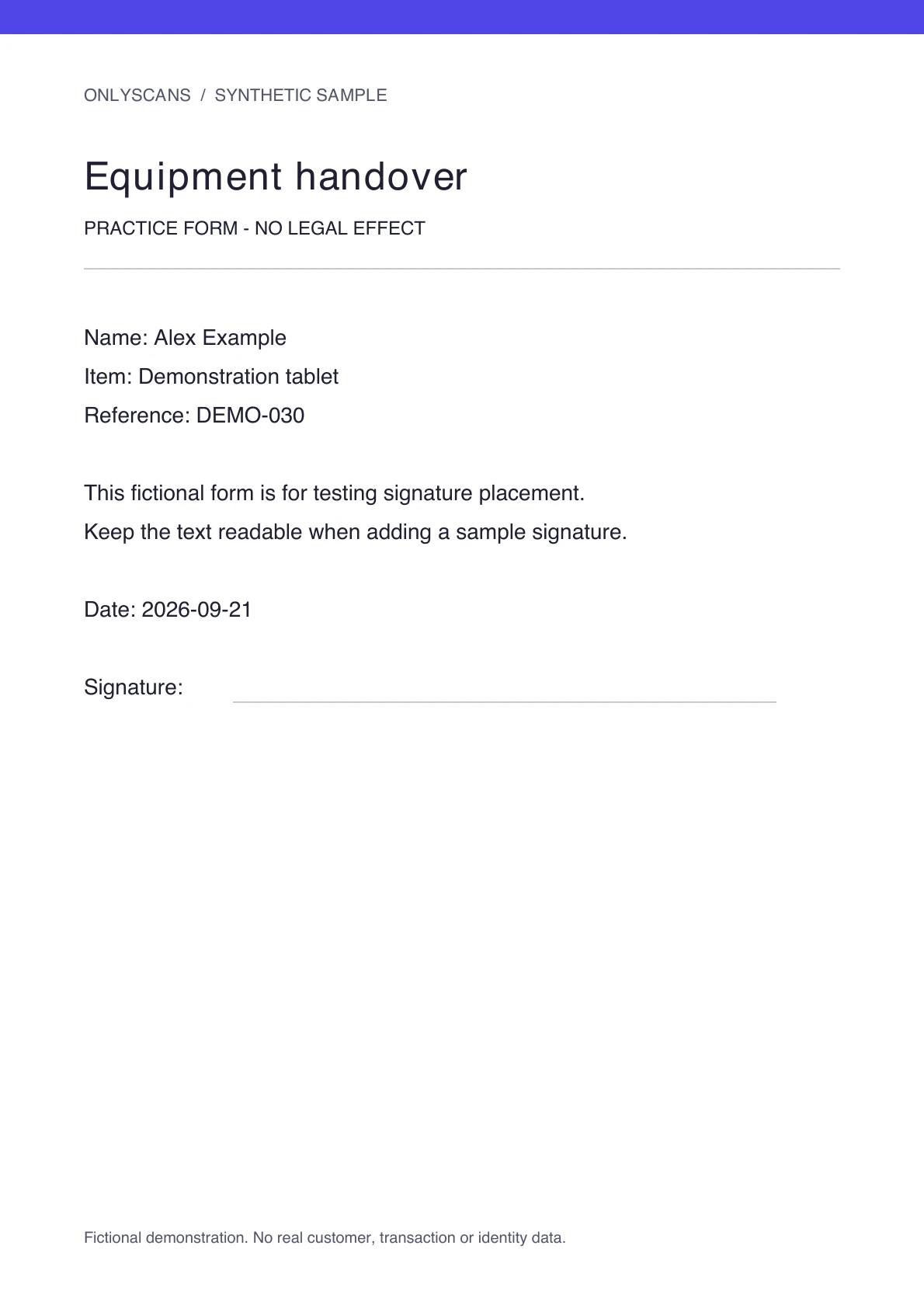
Signing is included with Pro. Open the document page and use the signature tool to select a saved signature or capture/import one. Position it on the correct line, adjust its size and rotation, then save the page. Typed text and freehand drawing are separate editing tools; adding a name as text is not the same action as inserting your signature image.
Export as PDF and reopen the saved file. Confirm that the signature is on the intended page, no text is covered and every required page is included. Keep an unsigned original if you need to revise the form later. This places a visible signature on the document; it does not provide certificate-based digital signing or identity verification. Check the recipient’s signing requirements.
Scan and sign FAQ
Can I sign a scanned document without a cloud service?
Yes. OnlyScans lets you add your signature on-device and export a signed PDF without any cloud e-sign account or upload.
Is my signed document uploaded anywhere?
No. OnlyScans has no cloud backend, so scanned and signed documents stay in local storage on your phone until you share or export them yourself.
Can I password-protect a signed PDF?
Yes. You can add a password to the exported signed PDF and lock the app with biometric authentication to keep it private.
Can I sign a PDF I already have on my phone?
Yes. Import the existing PDF into OnlyScans (PDF import is a Pro feature), place your signature on the right page, and export the signed PDF. Signing and export run on your device; nothing is uploaded.
Related OnlyScans workflows
- Scan receipts to searchable PDFs →
- Scan an ID card to PDF →
- Scan documents to PDF on Android & iOS →
- Scan to Word on Android and iPhone →
- Use the offline document scanner — no cloud upload →
- See every OnlyScans feature →